

Settings → Insurance Codes
Step 10: Add & Manage Insurance Codes
The Insurance Codes section is where you manage your clinic’s most-used Diagnosis Codes and Billing Codes. You can quickly search, mark favorites for one-click access, and add custom codes (with pricing) for invoices and superbills.
▶️ Watch first: Insurance Codes (Favorites + Custom Codes)
(1–2 minute walkthrough: search, favorites, add custom diagnosis or billing codes)
Tip: This video starts at the Insurance Codes section of the full tutorial.
Why favorites matter
If you use the same 5–10 codes repeatedly, mark them as Favorites so you don’t have to search every time.
You can also switch to the Favorites view to show only your starred codes.
Where to find Insurance Codes
- Open Settings in the top navigation.
- In the left sidebar, click Insurance Codes.
- Use the top tabs to switch between Diagnosis Codes and Billing Codes.
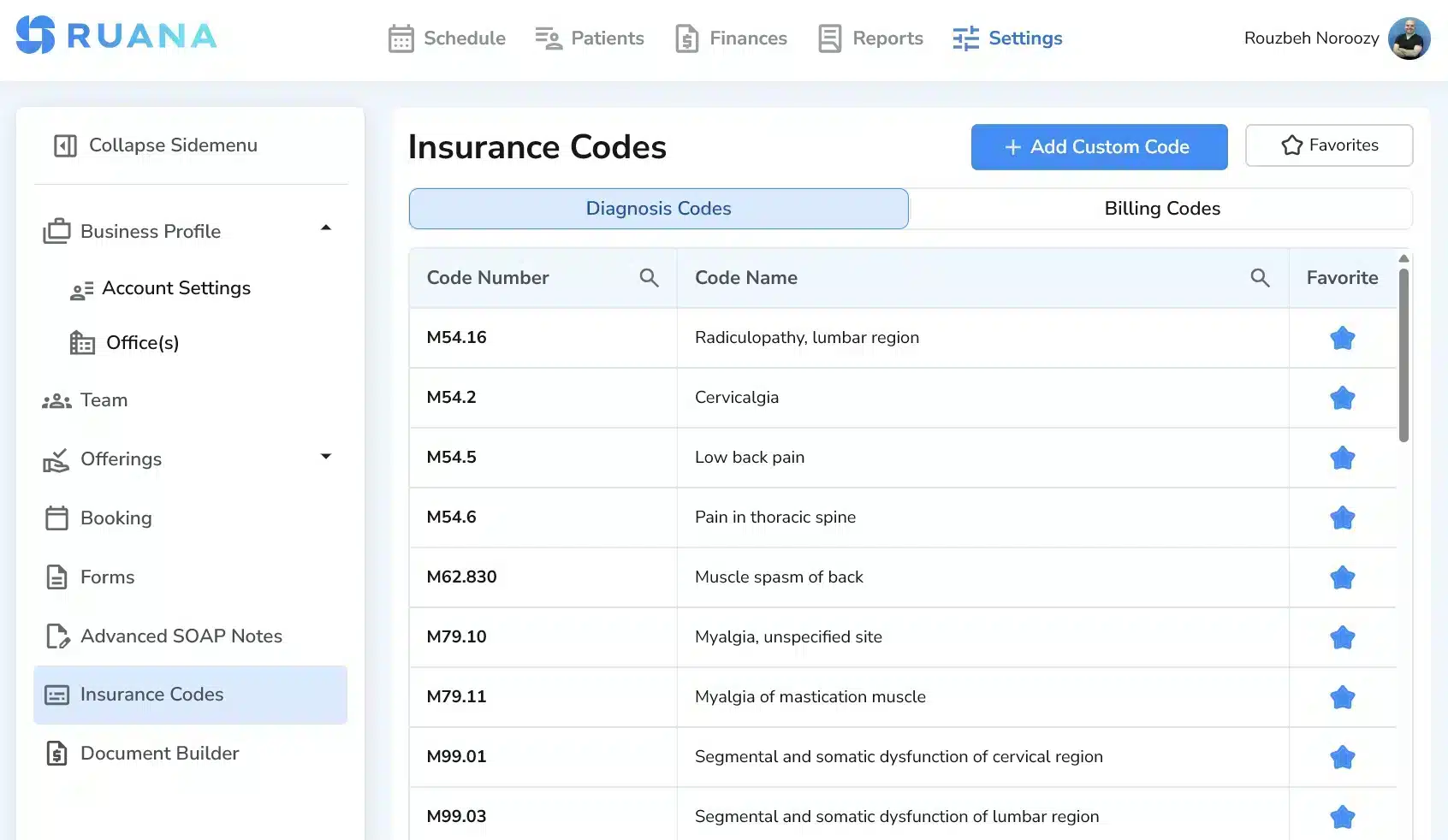
Insurance Codes location in Settings
Search and favorite common codes
- Use the Search field to find a code by number or name.
- Click the Star icon to mark the code as a Favorite.
- To see only your favorites, click the Favorites button at the top right.
- Clear the search field to return to the full list.
Pro tip: Build your “Top 10” favorites list first. That’s usually enough for most clinics and makes daily charting much faster.
Add a custom diagnosis code or billing code
- Click + Add Custom Code.
- Select the Code Type: Diagnosis Code or Billing code.
- Enter a Code Number.
- Enter a Code Description.
- If adding a billing code, enter the Price.
- Click Add Code to save.
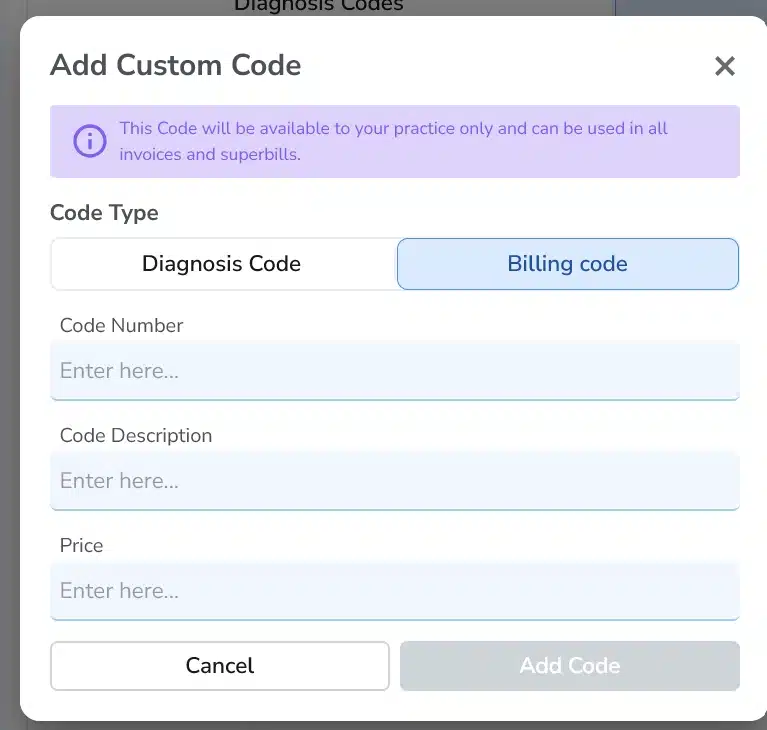
Add Custom Code (Billing code) — includes price
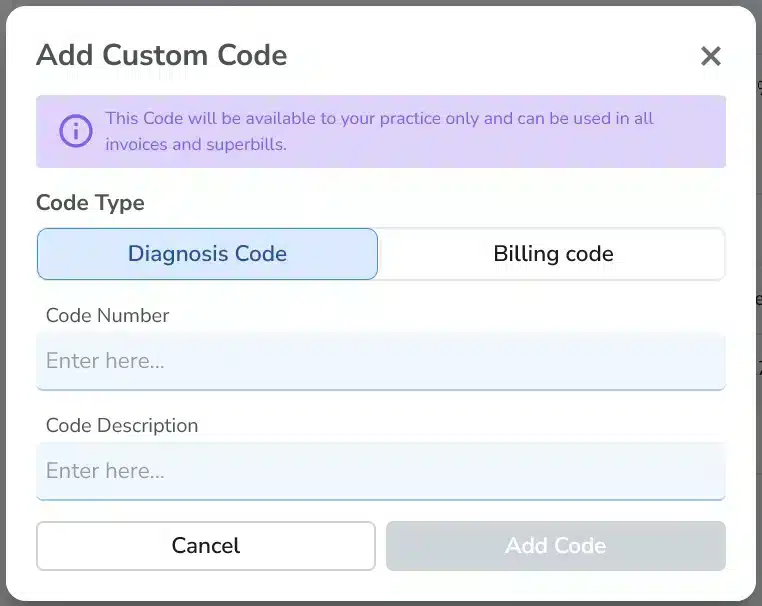
Add Custom Code (Diagnosis Code) — no price required
Custom codes are available only to your practice and can be used in your invoices and superbills.
This is especially helpful if you’re in a country/region with different code systems or you need your own internal billing items.
Next step
After your codes are set up, continue to Step 11: Invoice Builder & Document Customization to control how codes and pricing appear on invoices and receipts.