

Step 6: Create packages in Ruana
Create visit packs (example: a 10-pack massage or 10-pack chiropractic) so Ruana can track remaining visits, handle expiration rules, and apply service-specific fees correctly.
Why this matters: Packages help clinics sell prepaid care while Ruana automatically tracks visits used, enforces expiration (if set), and ensures the right service pricing is applied at checkout.
▶️ Watch first: Creating a package and assigning services
(2–3 minute walkthrough: package name, visits, expiration, + Assign, and saving)
Where to find Packages
Navigate to:
Top menu → Settings
Left sidebar → Offerings → Packages
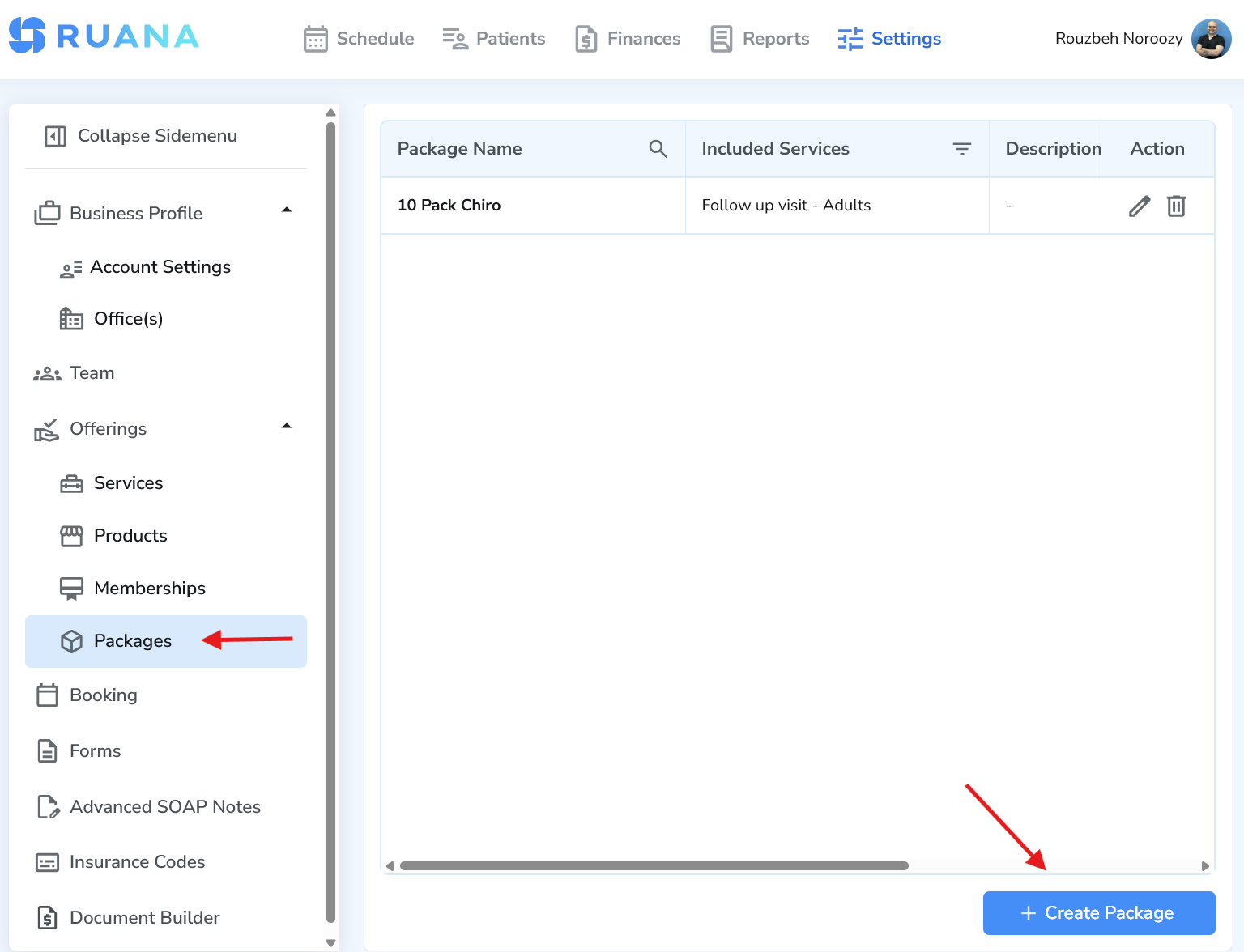
How to create a new package
- Go to Settings → Offerings → Packages
- Click Create Package
- Fill out Package Details
- Set Package Pricing & Terms (price, visits, expiration)
- Under Assign Service to Package, select a Service (and optional Additional Fee)
- Click + Assign
- Click Create Package (or Save, depending on your button label)
Important: Packages must have at least one service added using + Assign. If you skip + Assign, the package may not include any billable services. Always click + Assign first, then click Create Package / Save.
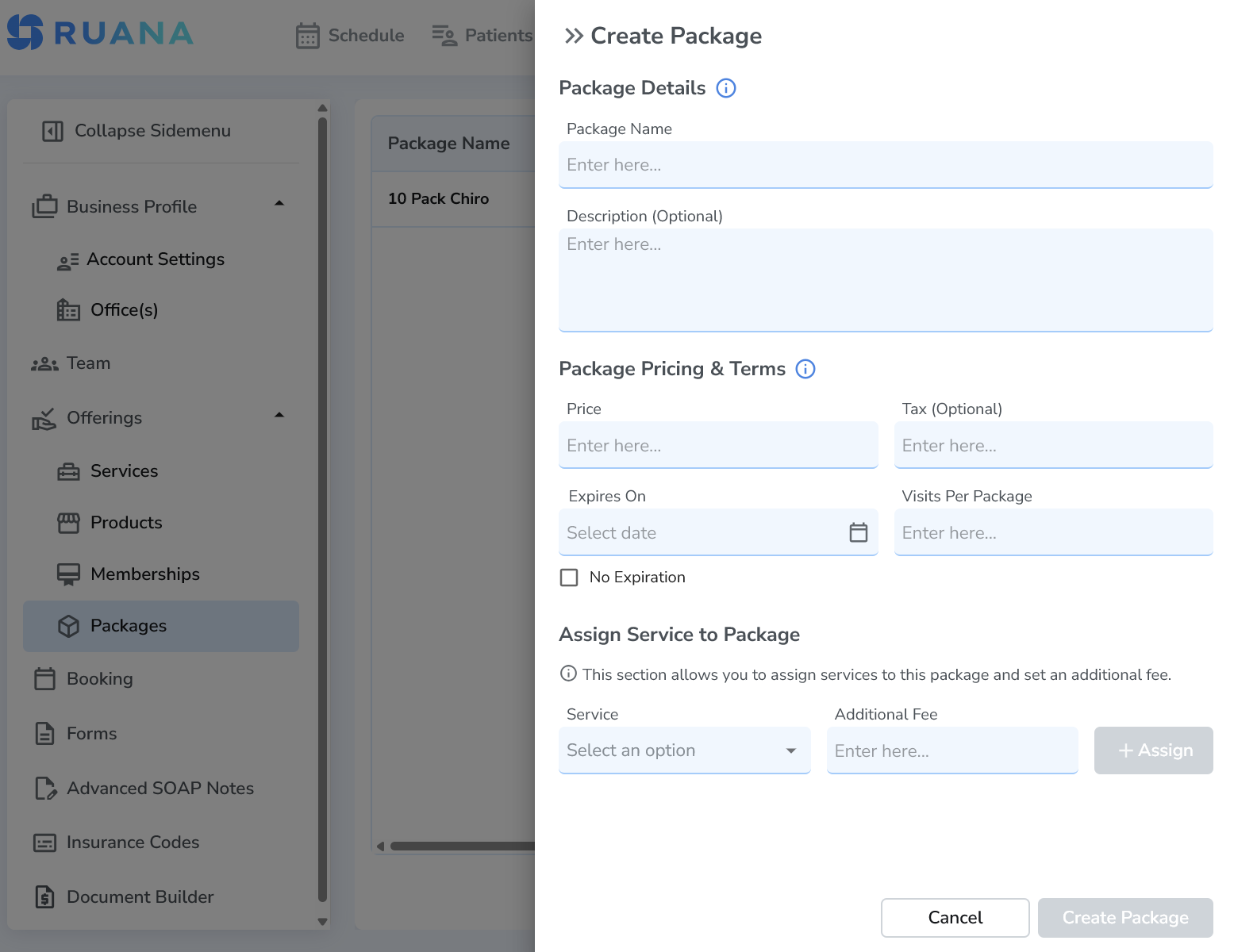
Package Details explained
- Package Name – What you call the package (example: 10 Pack Massage or 10 Pack Chiro).
- Description (Optional) – Internal notes (and/or customer-facing text if you choose to display it in the future).
Package Pricing & Terms explained
This section defines how Ruana tracks package usage and rules.
- Price – Total price for the package.
- Tax (Optional) – If applicable for your clinic’s checkout workflow.
- Visits Per Package – Number of visits included (example: 10).
- Expires On – Optional expiration date.
- No Expiration – Enable this if you do not want the package to expire.
Tip: If you offer prepaid packs that never expire, select No Expiration. If your clinic requires time limits (example: 6 months), set an Expires On date.
Assign Service to Package (the most important part)
Packages only work when they’re connected to one or more services. This tells Ruana which appointments can use the package visits.
- Service – Select the service that can be paid using this package.
- Additional Fee – Optional. Add a per-visit upgrade fee for that service.
Example: Your package covers Massage (Standard), but Deep Tissue costs $15 more per visit. Assign the package to Deep Tissue and set Additional Fee = 15. Ruana will apply the extra charge when that service is booked/checked out.
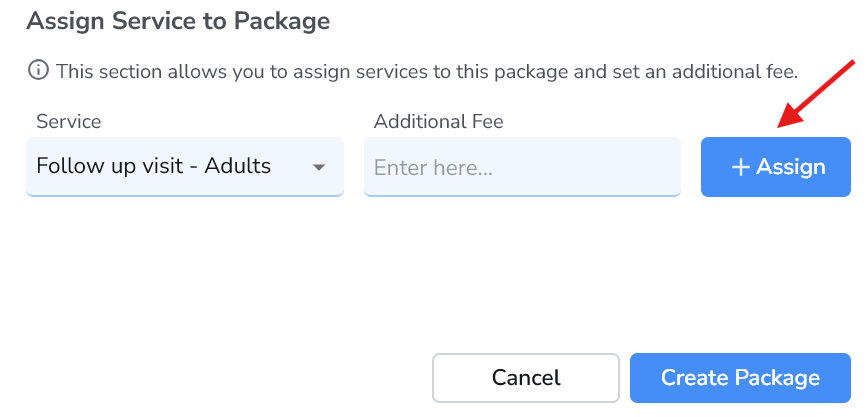
The most common mistake: forgetting “+ Assign”
Selecting a service is not enough — you must click + Assign to attach it to the package.
No + Assign = no services in the package.
Always follow this order:
Select service → (optional) Additional Fee → + Assign → Create Package / Save
Best practices for packages
- Make package names obvious (example: 10 Visits – Massage).
- Use Visits Per Package for accurate tracking and fewer front desk mistakes.
- If you offer upgrades, use Additional Fee instead of creating multiple confusing packages.
- Decide expiration rules up front (or use No Expiration).
- After saving, confirm the package shows the assigned service(s) in the package list.
What’s next
Next, most clinics set up Memberships (if you offer monthly plans), Forms for intake, and then enable Online Booking so patients can schedule the right services.