

Step 6A: Add Memberships
Memberships allow you to create recurring care plans such as monthly massage memberships, weekly wellness plans, or annual care programs. This guide shows you exactly how to create and configure them properly.
▶️ Watch: How to Create a Membership in Ruana
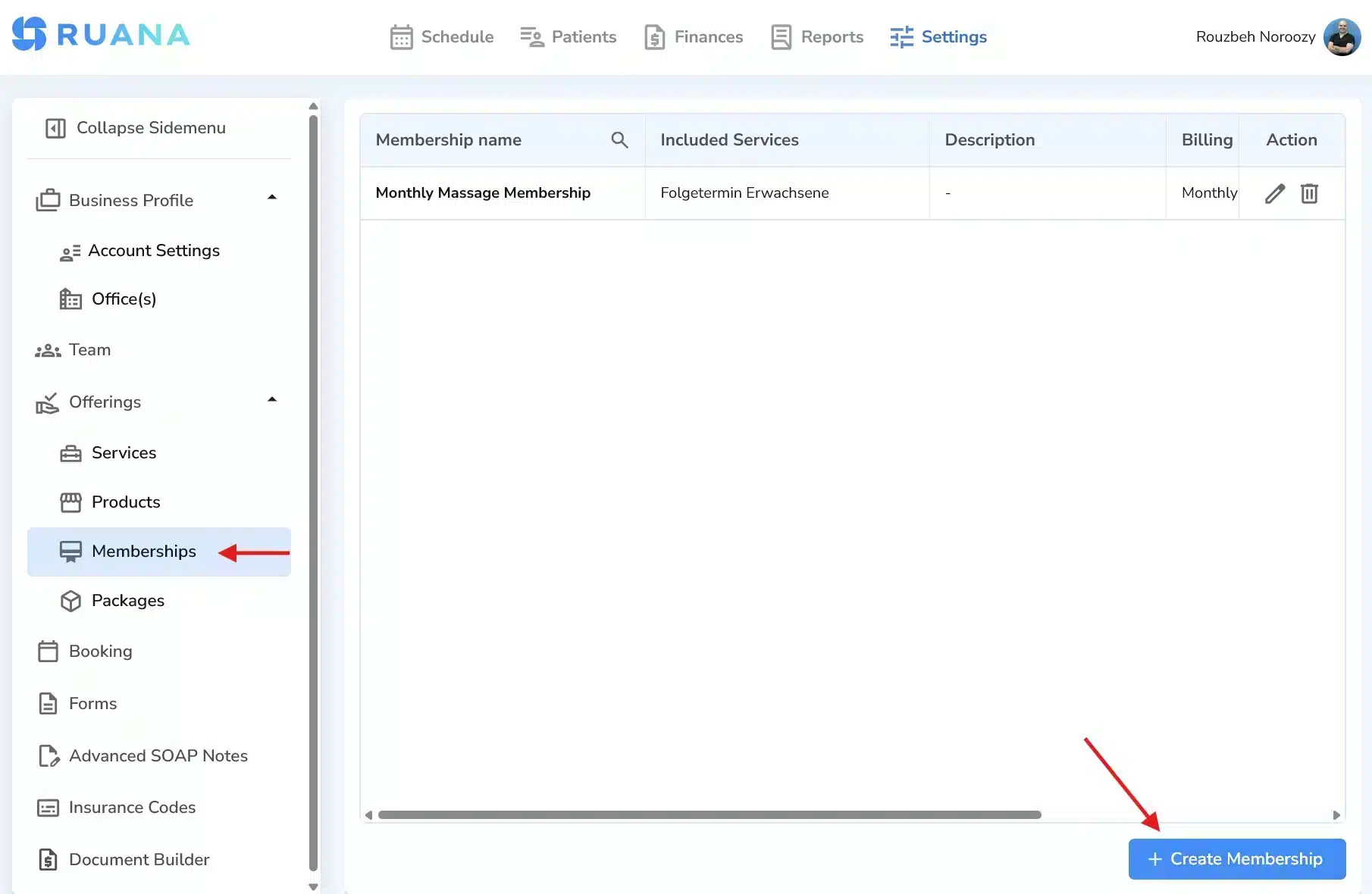
Where to Find Memberships
- Click Settings in the top navigation bar.
- In the left sidebar, click Offerings.
- Select Memberships.
- Click + Create Membership.
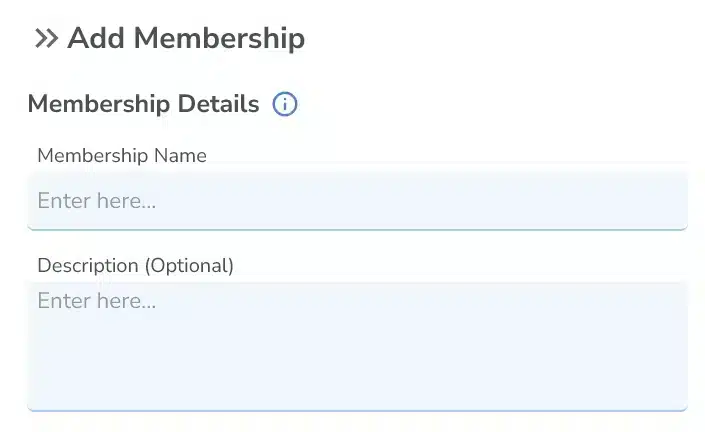
Membership Details
Membership Name
Enter a clear name such as Monthly Massage Membership.
Description (Optional)
Add internal or client-facing details about what the membership includes.
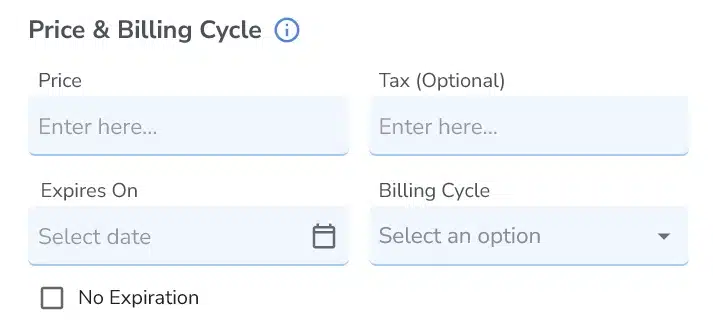
Price & Billing Cycle
- Price – The cost per billing cycle.
- Tax (Optional) – Add tax if applicable.
- Billing Cycle – Choose Weekly, Monthly, or Yearly.
- Expires On – Set a fixed expiration date.
- No Expiration – Keeps the membership active indefinitely.
Important: Ruana does not automatically charge credit cards for memberships. Recurring payments must currently be processed manually by the clinic.
Cancellation Policy
- Number of Days – Required notice period.
- Type – Day(s), Week(s), or Month(s).
- Cancel Anytime – Allows cancellation without notice restrictions.
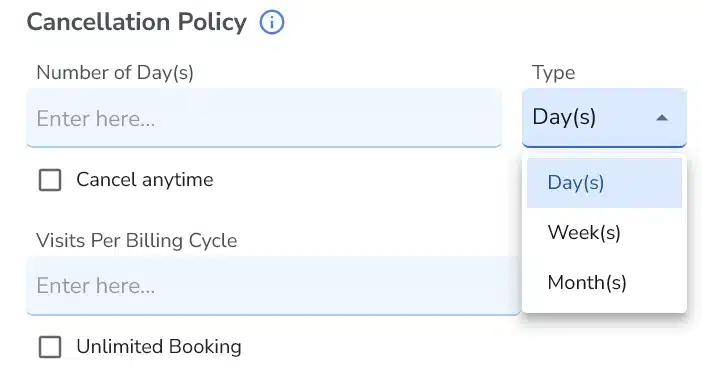
Visits Per Billing Cycle
- Define how many sessions are included per billing period.
- Select Unlimited Booking if there is no visit limit.
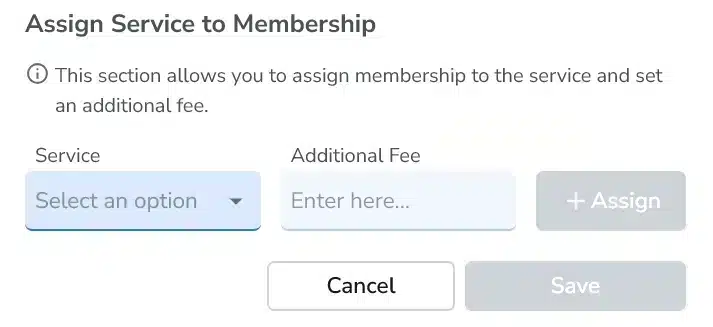
Assign Service to Membership (Required)
A membership must be assigned to at least one service. Without assigning a service, the membership will not function properly.
- Select a service from the dropdown.
- Optionally enter an Additional Fee.
- Click Assign.
- Click Save to finalize the membership.
Adding an Additional Fee per Service
You can assign multiple services to one membership and define an additional fee per service.
Example:
- Monthly Massage Membership includes massage at no extra cost.
- If also assigned to Chiropractic, you can add an additional fee (e.g., $20).
- This helps you use one membership across different service prices.
Tip: After creating memberships, test them by attaching them to a patient and processing a manual invoice.