

Step 11: Invoice Builder & Customization
The Document Builder allows you to customize how your invoices, receipts, and superbills appear. You control which fields are displayed, how payment information is structured, and how your clinic branding is shown.
▶️ Watch first: Invoice Builder Overview
(2–3 minute walkthrough of editing invoice, receipt, and superbill templates)
Where to find the Document Builder
- Go to Settings in the top navigation.
- Click Document Builder in the left sidebar.
- Select the template you want to customize:
- Invoice Template
- Superbill Template
- Receipt Template
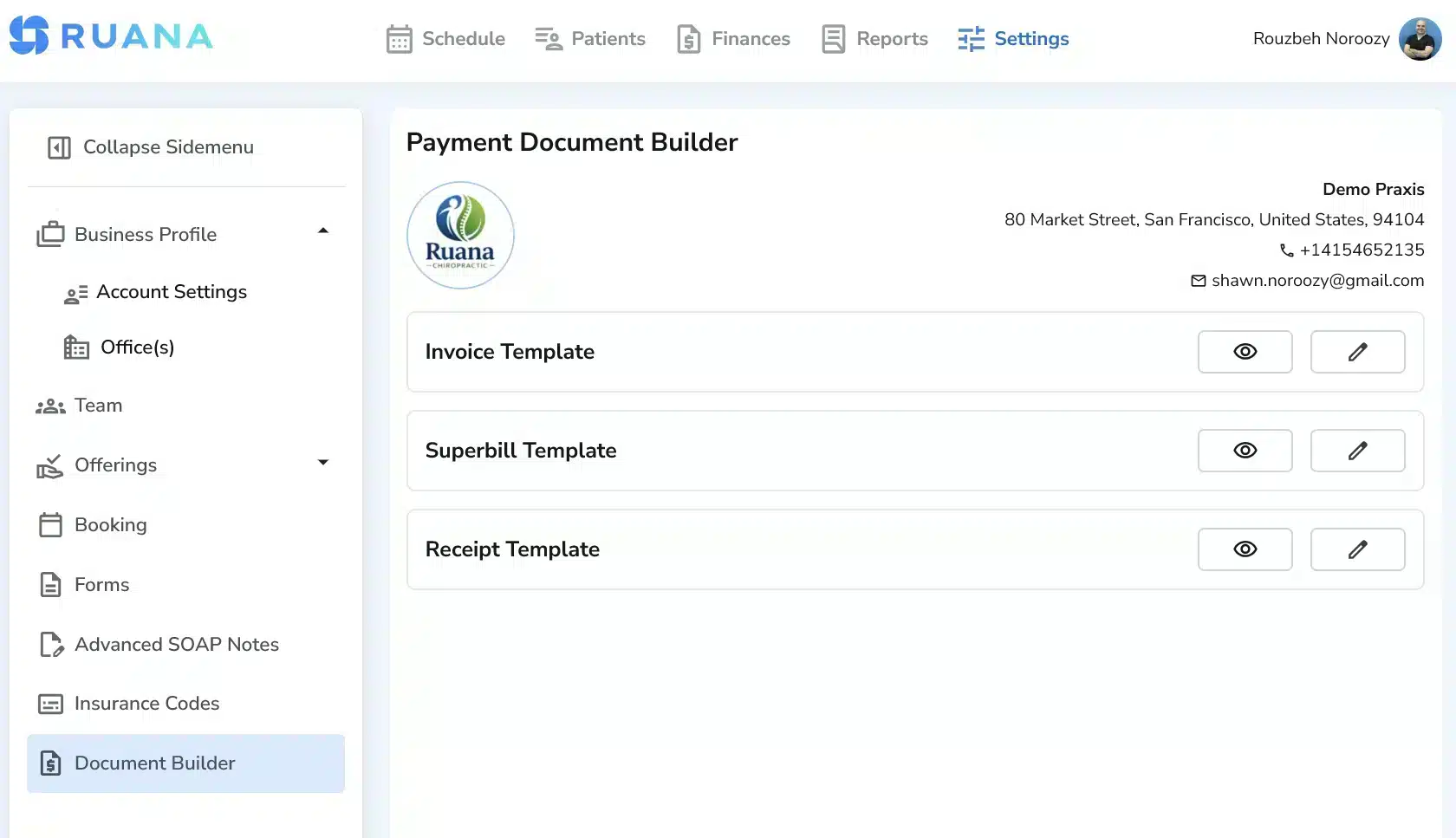
Document Builder main screen – choose Invoice, Superbill, or Receipt
How to customize a template
- Click Edit (pencil icon) to modify a template.
- Use the checkboxes to include or exclude fields.
- Toggle items such as:
- Invoice Number
- Insurance Policy Number
- Address
- Phone number
- Click Preview (eye icon) to see how the document will look.
- Save your changes when finished.
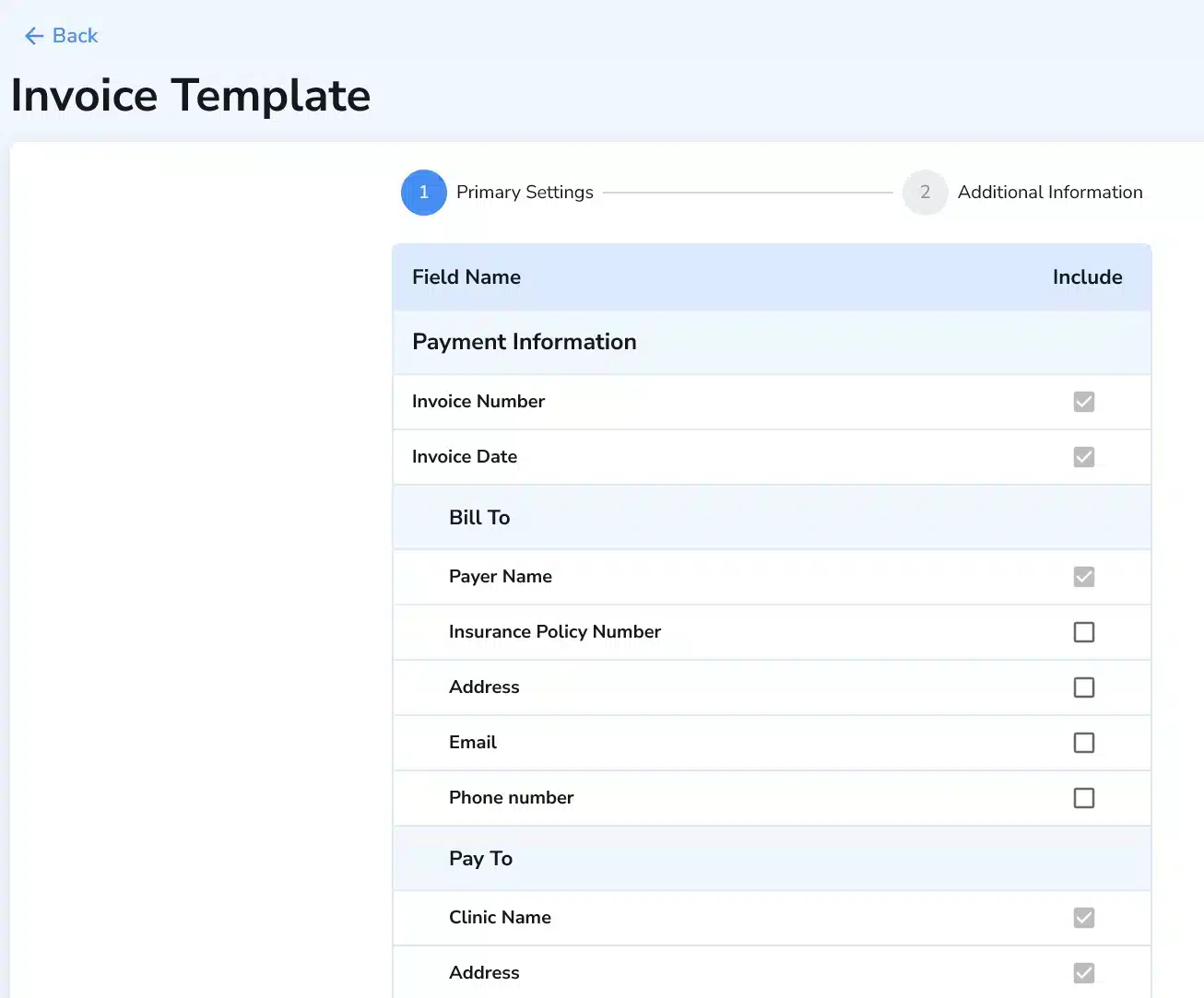
Invoice Template – select which fields appear on the document
Clinic logo & branding
Your clinic logo is automatically pulled into invoices, receipts, and superbills.
Make sure your logo is uploaded in Business Profile → Account Settings to ensure professional document output.
What you can control
- Which fields appear on invoices
- Insurance-related information display
- Clinic contact details
- Superbill formatting
- Receipt layout structure
Once your templates are customized, all generated invoices, receipts, and superbills will follow your selected layout automatically.
You can return anytime to modify them as your clinic grows.