

Step 9: Create Advanced SOAP Notes (Automatic Notes)
Advanced SOAP Notes allow you to create one-click Automatic Notes so you don’t have to type the same clinical text over and over again. These notes can be used by chiropractors, massage therapists, osteopaths, physical therapists, and other practitioners.
What are Automatic Notes?
Automatic Notes are buttons that instantly insert pre-written text into your SOAP notes
(Subjective, Objective, Action, or Plan).
On this page
- Where to find Advanced SOAP Notes
- Create a Visit Type
- Create Automatic Notes
- SOAP Categories (S / O / A / P)
- Best practices
- What’s next
Where to find Advanced SOAP Notes
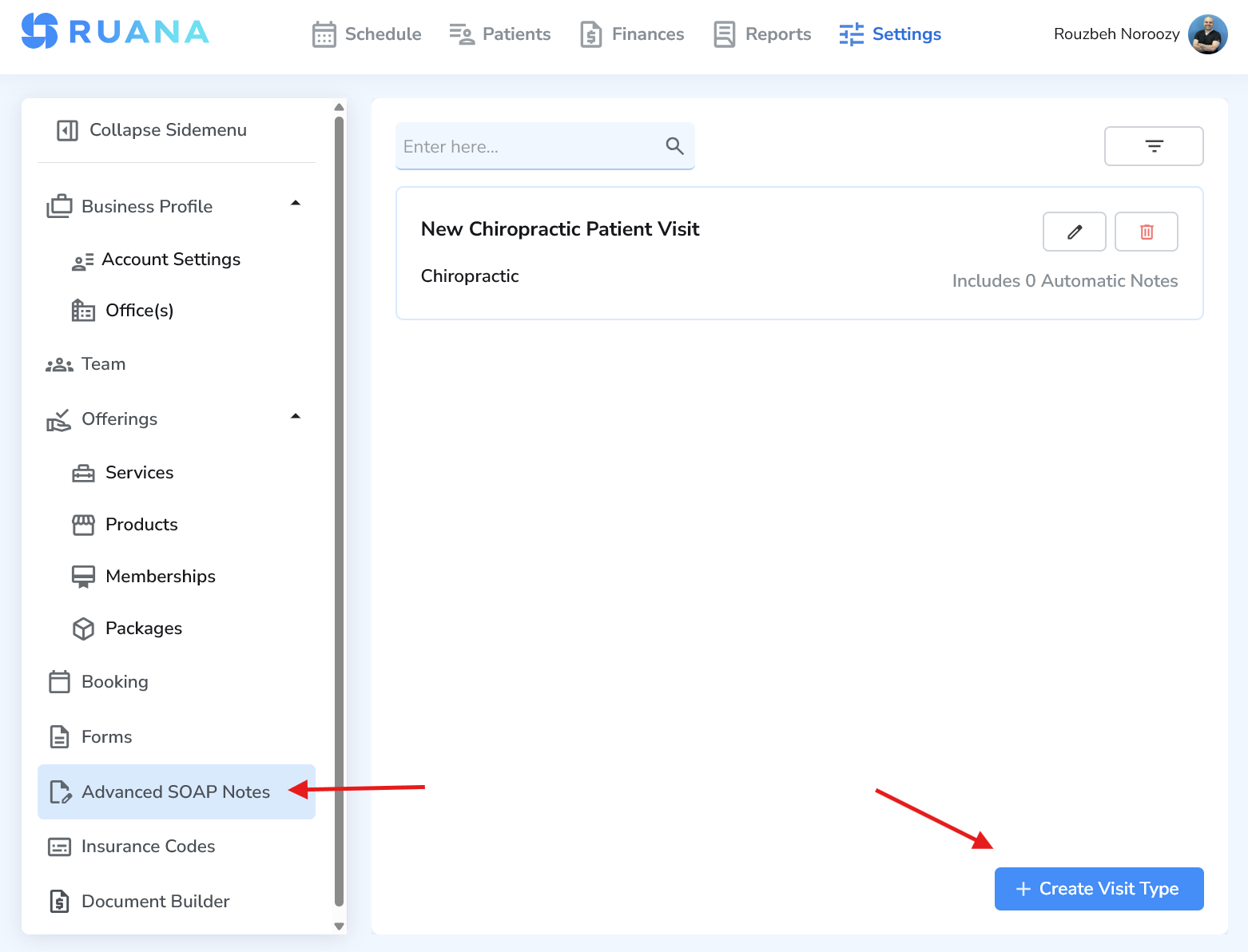
Go to Settings and select Advanced SOAP Notes from the left sidebar. This is where you create and manage all Automatic Notes.
Create a Visit Type
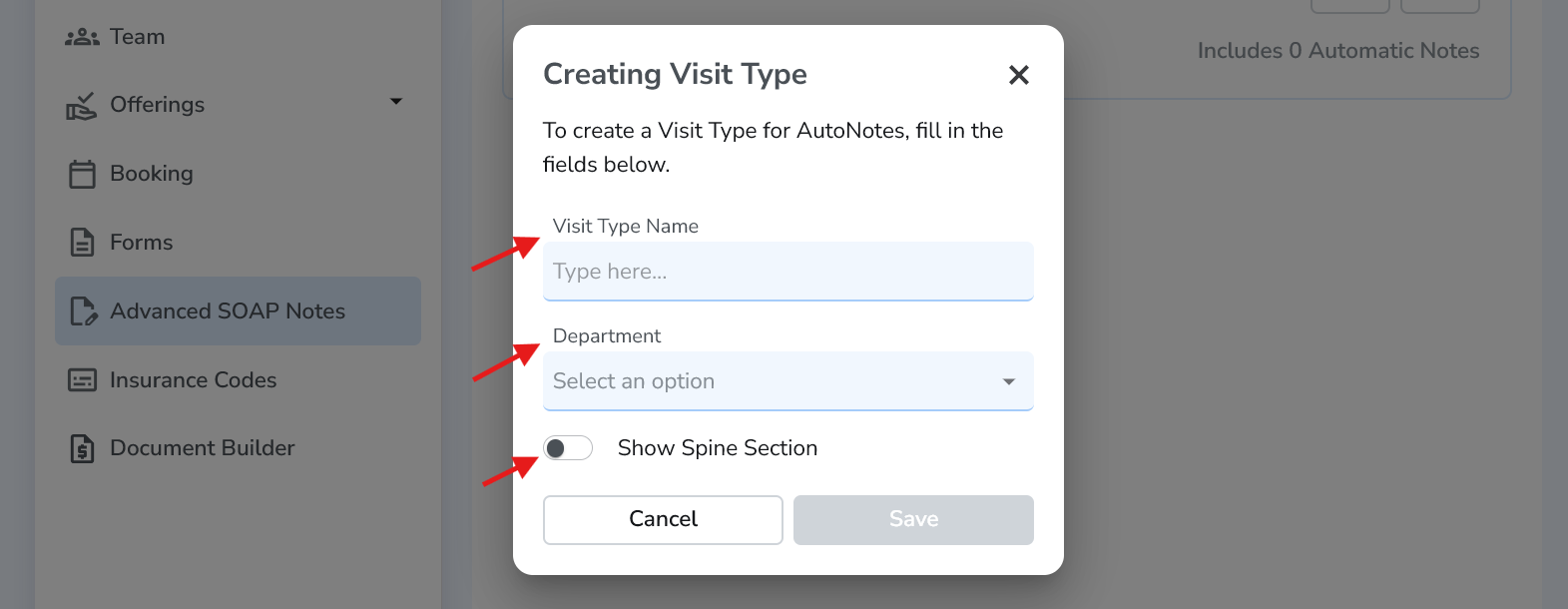
Click Create Visit Type. A Visit Type groups your Automatic Notes together and defines which department they belong to.
- Enter a Visit Type Name (for example: “Massage SOAP Notes”).
- Select the Department (e.g. Massage Therapy).
- Choose whether to Show Spine Section (recommended for chiropractors, osteopaths, PTs).
- Click Save.
Create Automatic Notes
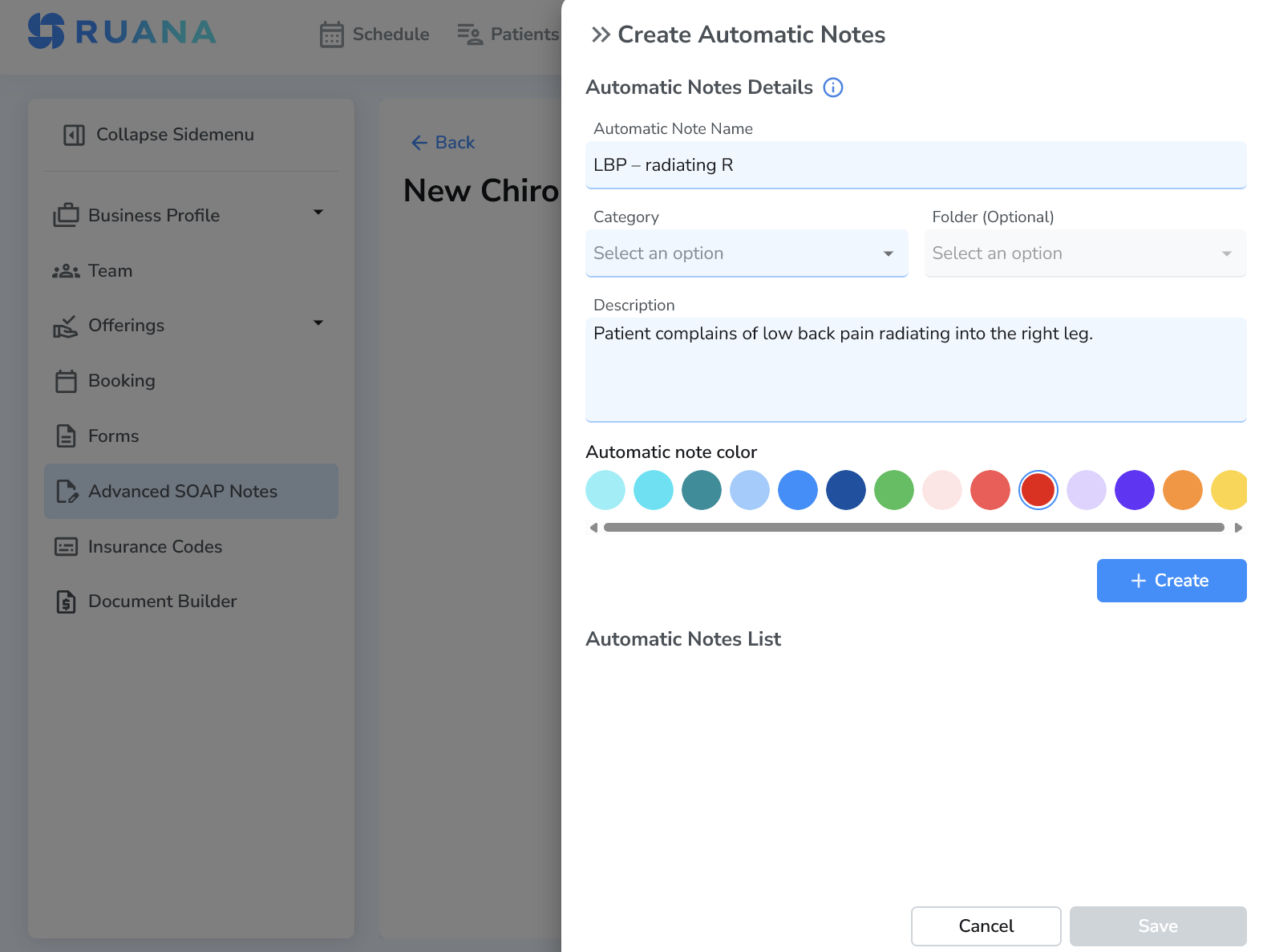
Inside your Visit Type, click Create Automatic Note. This creates a button that inserts text into your SOAP notes with one click.
Example:
- Button name: LBP – radiating R
- Inserted text: “Patient complains of low back pain radiating into the right leg.”
SOAP Categories (Subjective, Objective, Action, Plan)
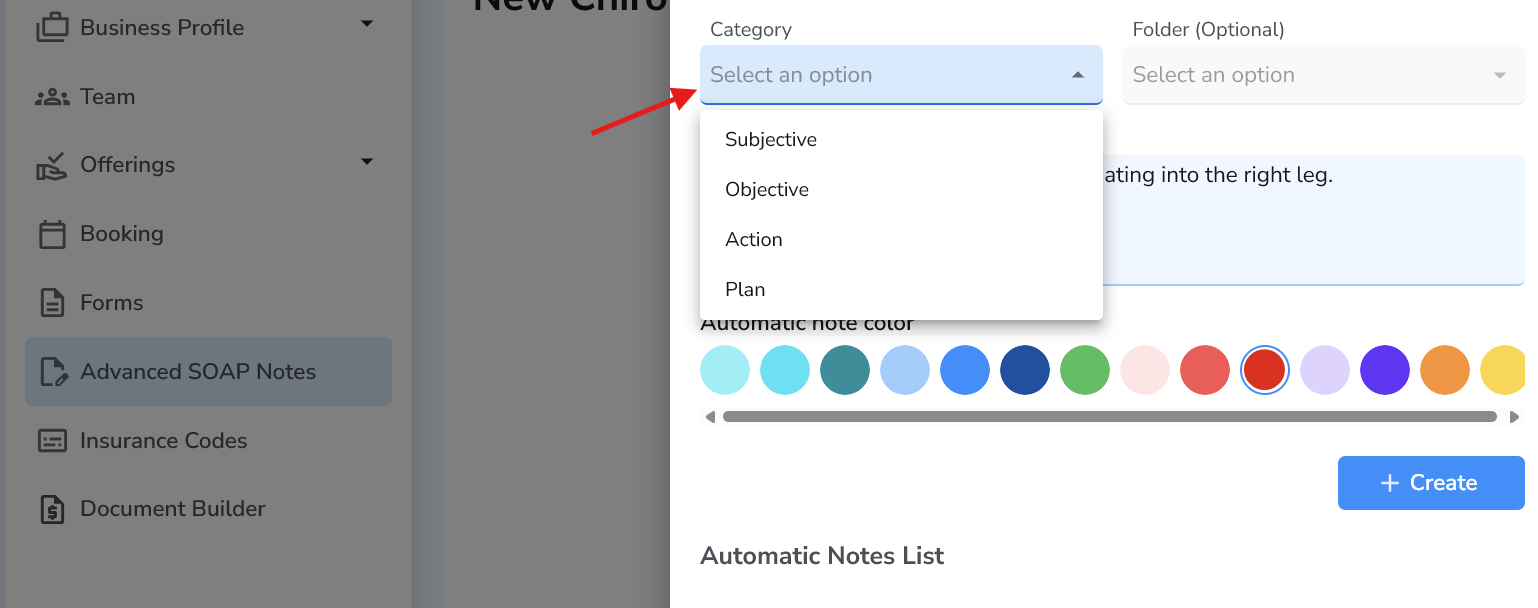
When creating an Automatic Note, you must select a Category. This determines where the button appears in the practitioner SOAP form.
- Subjective – Patient complaints, symptoms, history.
- Objective – Exam findings, palpation, ROM, observations.
- Action – Treatments performed.
- Plan – Care plan, frequency, home advice, follow-ups.
Important: Buttons only appear in the SOAP section that matches their category. Choose the category carefully.
Best practices for Automatic Notes
- Short button names: Easy to scan and click during visits.
- Full sentences: Let the inserted text be insurance-ready.
- Organize with folders: Group notes by complaint or body region.
- Department-specific: Keep massage, chiro, and PT notes separate.
- Build once, reuse forever: Save hours of documentation time.
What’s next
Once your Automatic Notes are created, practitioners can use them during visits to document faster and more consistently. Next, you can combine Advanced SOAP Notes with Forms and Services to build a fully automated clinical workflow.