

Step 5: Add products in Ruana
Set up clinic products like supplements, creams, braces, or retail items so they can be tracked, assigned to offices, and used correctly in your workflow.
Why this matters: Products allow Ruana to track inventory by office, prevent stock issues, and prepare your clinic for future billing, reporting, and operational growth.
▶️ Watch first: Adding and assigning products
(1 minute walkthrough of creating a product and assigning it to an office)
Where to find Products
Navigate to:
Top menu → Settings
Left sidebar → Offerings → Products
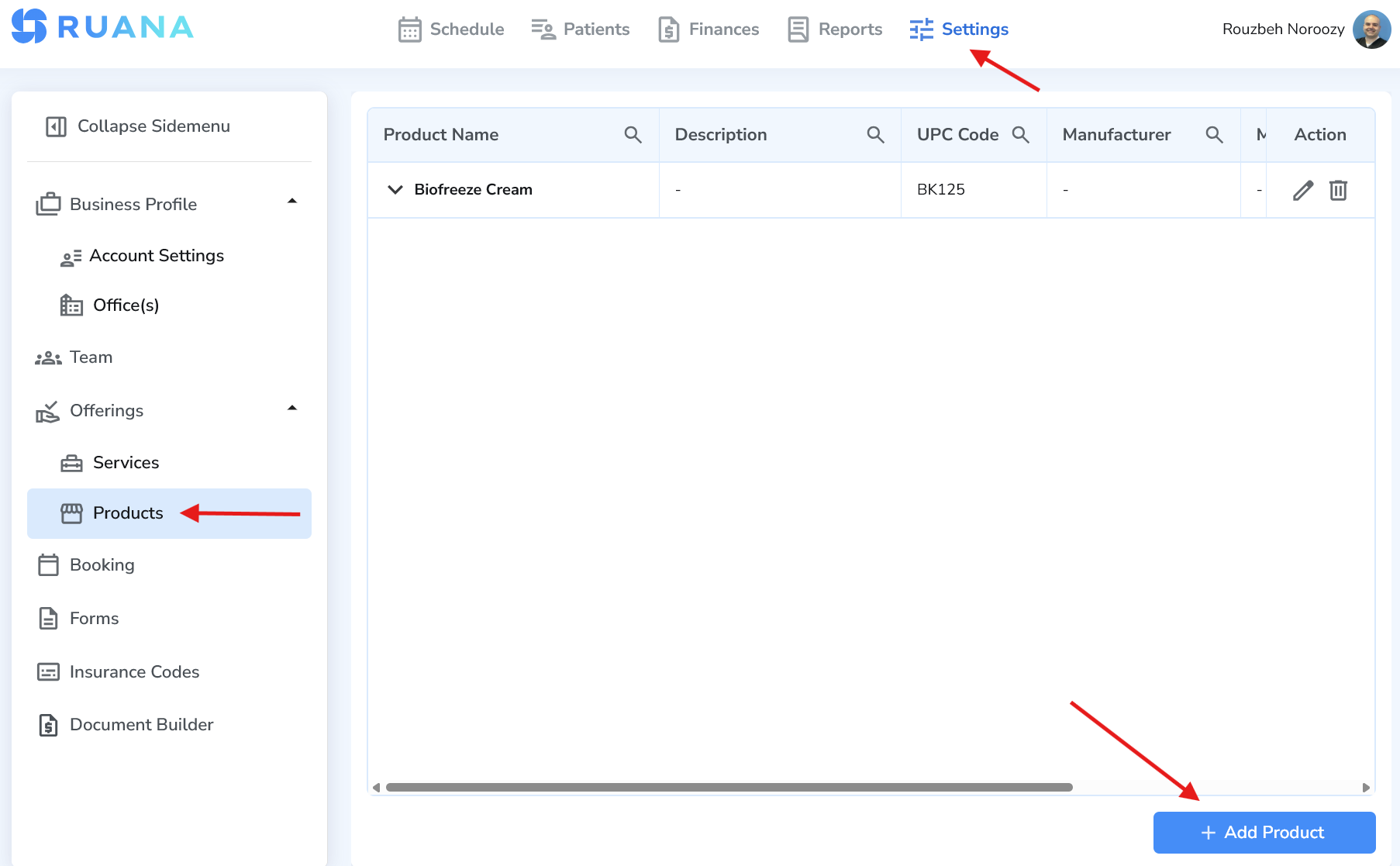
How to add a new product
- Go to Settings → Offerings → Products
- Click Add Product
- Fill out Product Details
- Complete Product Specification
- Click + Assign
- Click Save
Important: If you do not click + Assign before saving, the product will not be properly linked to an office. Always click + Assign first, then Save.
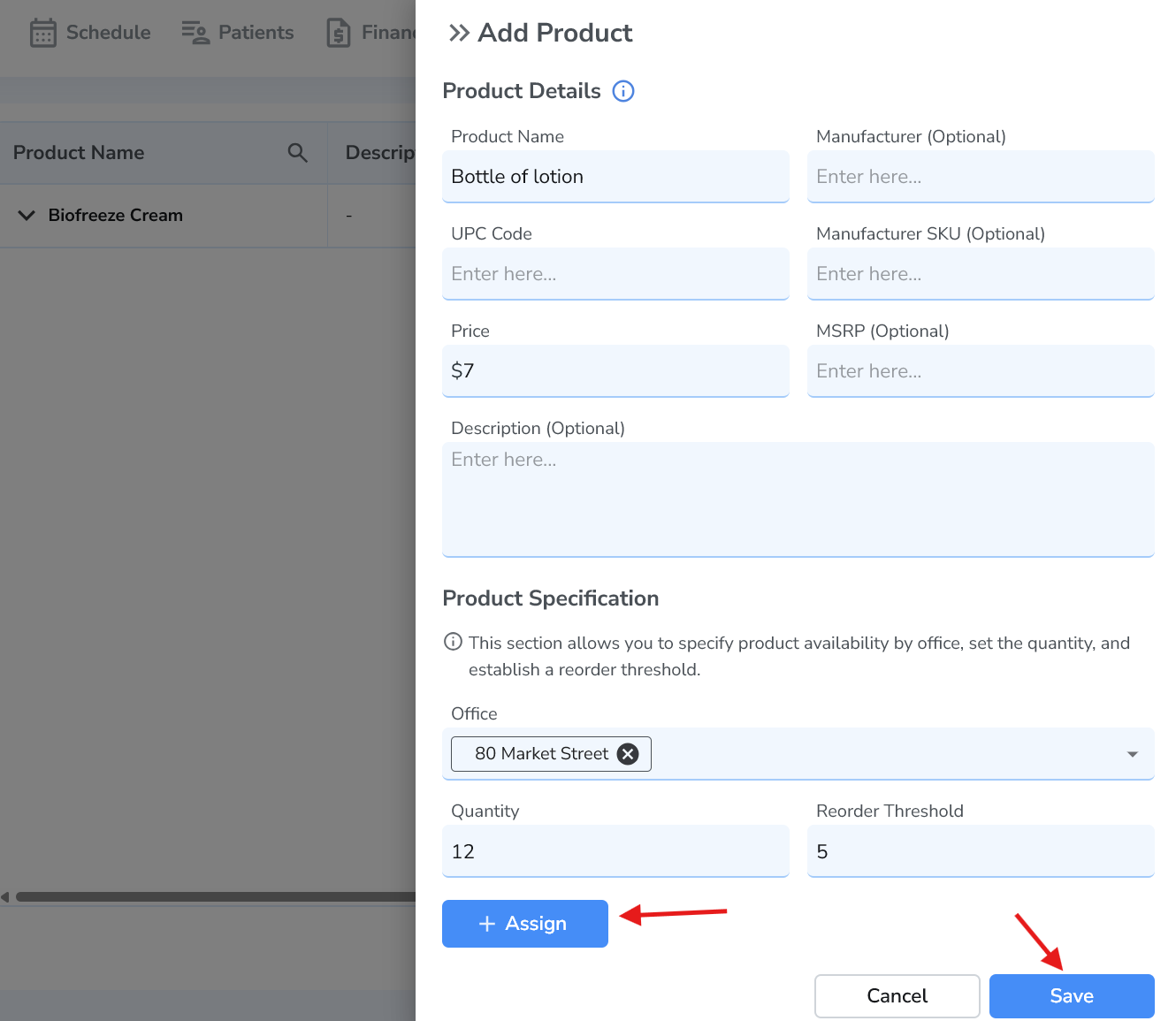
Product Details explained
- Product Name – Internal product name (example: Biofreeze Cream).
- Manufacturer (Optional) – Brand or supplier.
- UPC Code – Useful for tracking and future integrations.
- Manufacturer SKU (Optional) – Internal or supplier SKU.
- Price – Selling price of the product.
- MSRP (Optional) – Suggested retail price, if applicable.
- Description (Optional) – Internal notes or product details.
Product Specification explained
This section defines where the product is available and how Ruana tracks inventory.
- Office – Select which office carries this product.
- Quantity – Current inventory amount.
- Reorder Threshold – Quantity at which you should restock.
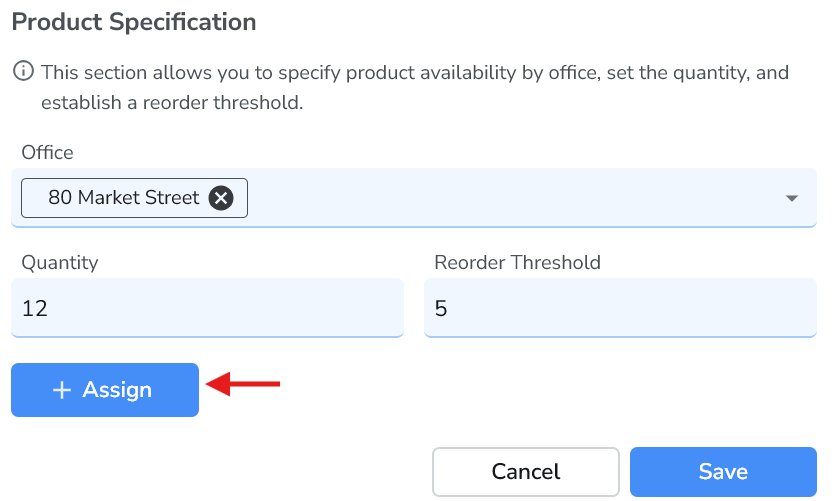
The most common mistake: forgetting “+ Assign”
Products must be assigned to an office before they are saved.
No + Assign = no usable product.
Always follow this order:
Fill details → + Assign → Save
Best practices for products
- Only add products you actively sell or use clinically.
- Use reorder thresholds to avoid running out of stock.
- Assign products to the correct office for accurate inventory.
- Keep product names clear and consistent.
What’s next
Your core clinic setup is now complete. Next steps typically include Forms, Online Booking, or Billing, depending on how you plan to use Ruana.